Video outpainting · Product footage
Video outpainting for product videos. More background, careful review.
A wider frame can create room around a product. Fine lettering, packaging geometry and reflections still need inspection; exact brand preservation is not promised.
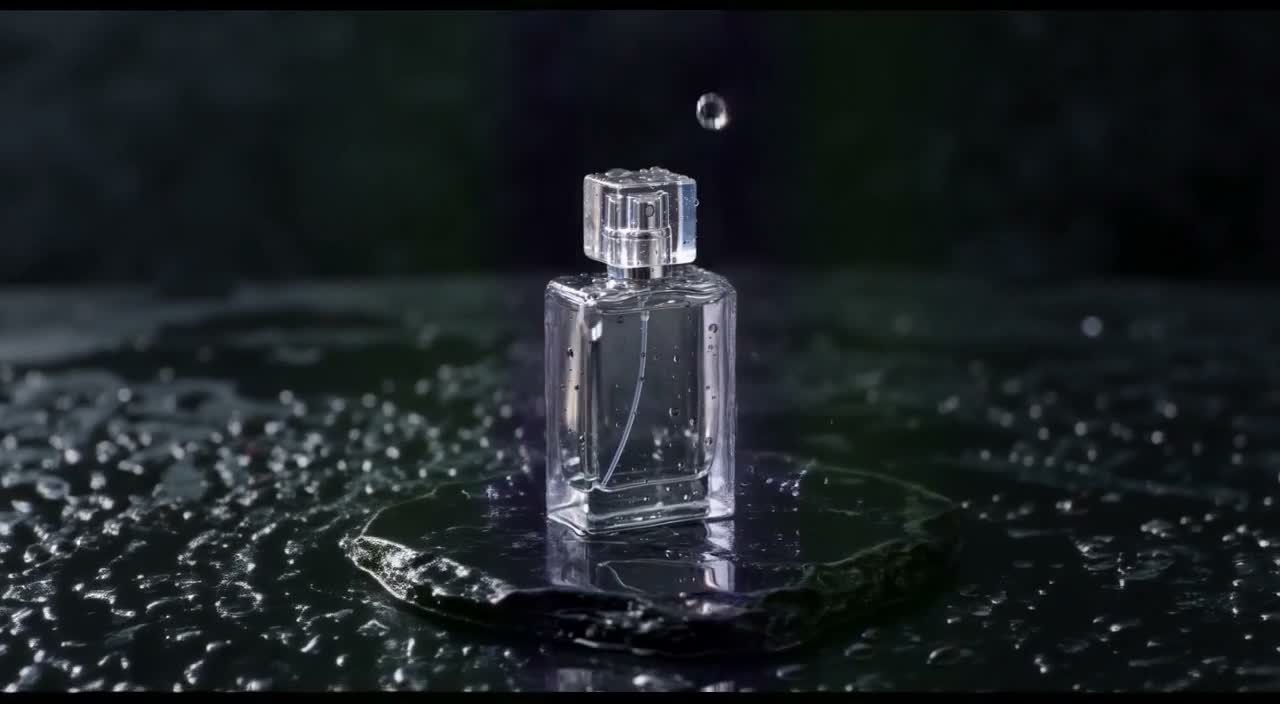
Product: portrait source to landscape output5.04s · 16:9 · 720p2026-10-07
01
Can video outpainting expand a product video?
Video outpainting can generate missing surroundings around a product clip when you need a different frame. It may also alter the product inside the source region. Our recorded example expands an unbranded bottle scene from portrait to landscape; it is not a test of precise labels or retail packaging. Use a conventional edit when the delivery requires unchanged product detail.
02
Unbranded bottle: source and outpainted result
Play both complete clips. The source is AI-generated footage from our own published library, not a customer case or camera recording. Source clips contain generated audio; the outpainted results are silent. These are individual jobs, not a success-rate benchmark.
Unbranded bottle · source
Original 720×1280 source, about 5.04 seconds, 30 fps with generated audio. It is shown at its native aspect ratio.
Open media fileOriginal Wan3Prime source fileUnbranded bottle · outpainted result
1280×704, 121 frames at 24 fps, silent. Inspect the original subject as well as the added environment. The source region can change; no exact-pixel preservation is promised.
Open media fileParameters and recorded-job manifest03
Compare a frame around 2.5 seconds
These JPEGs were extracted from the displayed MP4s on October 9, 2026. They retain the complete frame: no retouching, AI enhancement or concealed cropping. The different frame rates mean this is an approximate time comparison, not a pixel-aligned difference measurement.
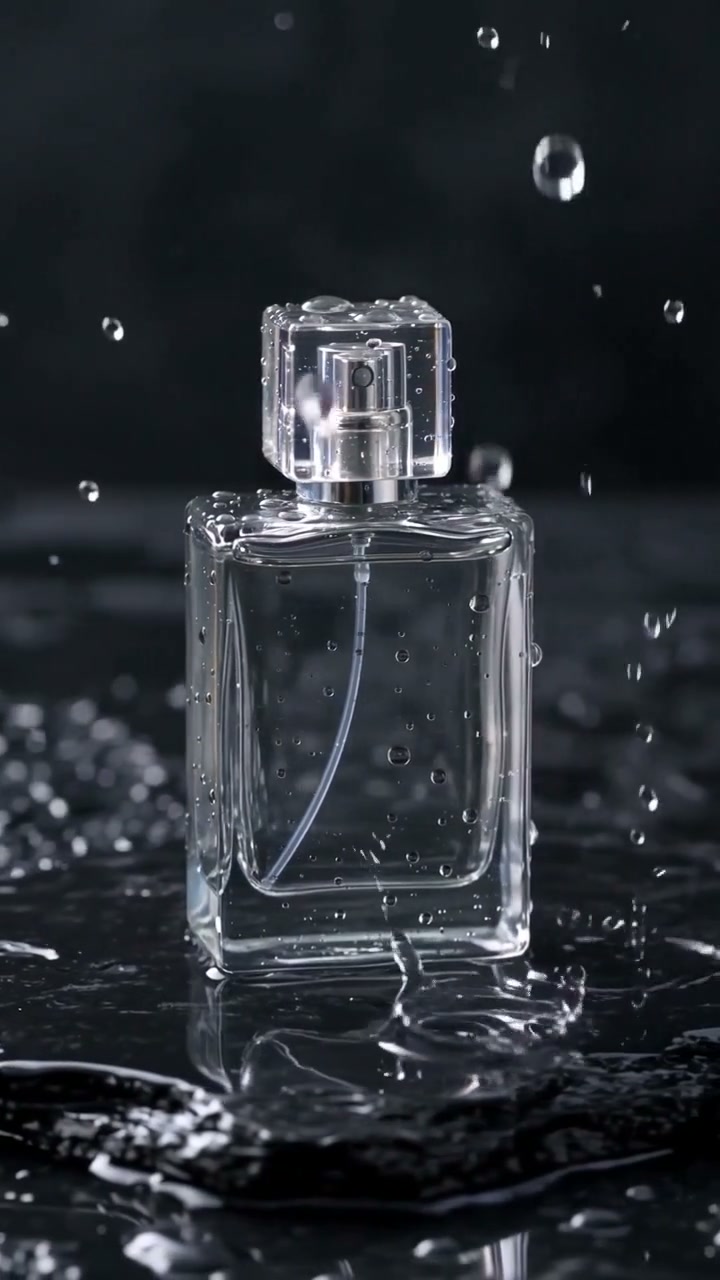
Unbranded bottle · source at approximately 2.5 s
Source frame. Use it to inspect the subject, lighting and composition before expansion.
Open media file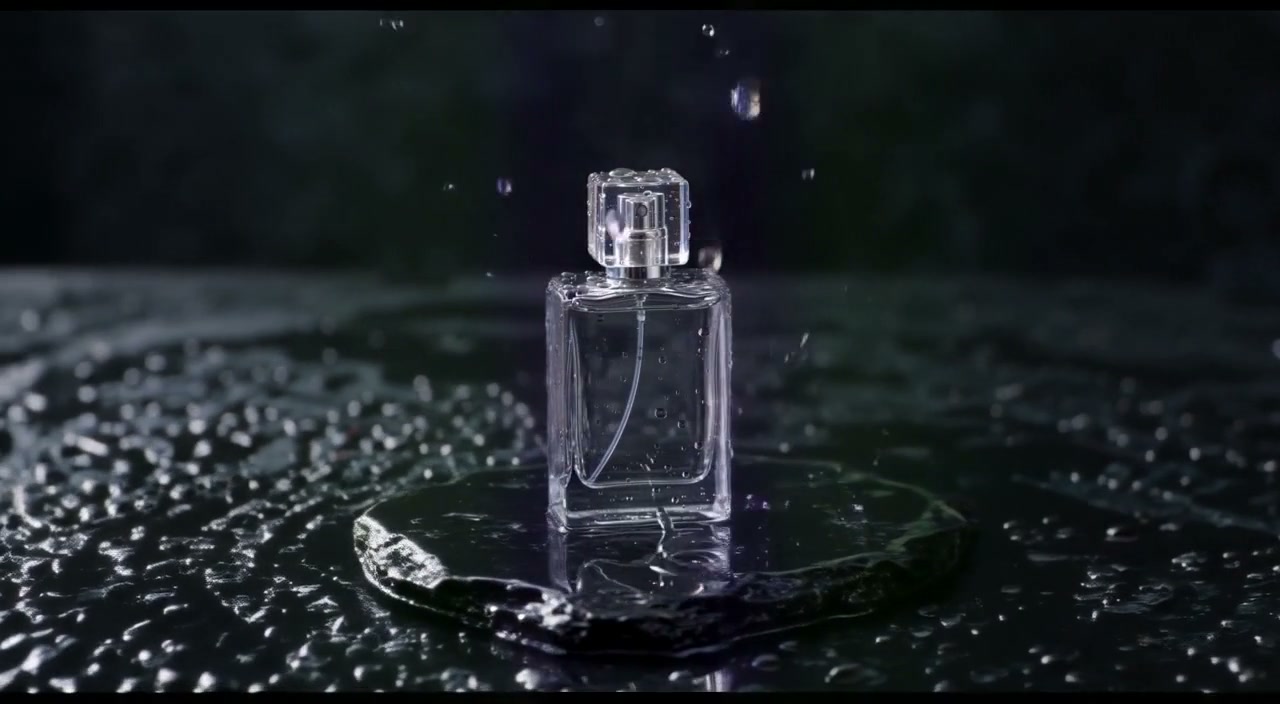
Unbranded bottle · result at approximately 2.5 s
Result frame. New space and changes inside the supplied image region are both part of the generated output.
Open media file04
What the sample establishes
The supplied source was our own generated portrait bottle clip. The output extends the dark scene into a landscape composition and contains a single centered bottle. Its encoded dimensions are 1280×704, with 121 frames at 24 fps and no audio track.
The black background and low-contrast surface make some edge detail difficult to judge. View the bottle outline, cap, highlights and tabletop across the full clip. The example has no commercial logo or readable product label, so it does not demonstrate their preservation.
Generated room beside a product can be useful when composing a wider website or campaign shot. Add your approved headline and logo in an editor after reviewing the video. A prompt asking the model to create text is a different task from expanding the background.
05
The exact prompt used for the recorded sample
This prompt has the linked result. Changing the source creates a new experiment.
Product background continuation
Recorded bottle prompt
Extend the existing dark product scene naturally to the left and right. Continue the wet black stone and dark background. Keep the original unbranded perfume bottle and its motion centered. No new products, logos, text or people.
06
Check the product before using the extra space
Prepare a short source
Trim to a single MP4 shot within the workspace limits. Use the MP4 preparation guide and keep the original file for comparison.
Describe the environment
Name the surface, background and direction of light that should continue. Keep added objects out of the brief when the product is the subject.
Inspect the commercial details
Review the silhouette, cap, label, material and reflections throughout the result. Reject footage that changes a detail essential to the product.
Finish the composition in an editor
Place accurate text and brand assets after visual approval. Reattach only audio you are authorized to use; the downloaded result is silent.
07
Product outpainting questions
Will the original product label stay identical?
That is not guaranteed. The preset is a generative edit, and the bottle sample does not contain a readable branded label. Use padding or another conventional edit if exact detail is required.
Can I add new text through the outpainting prompt?
This workflow is for surrounding image regions. For accurate copy, add text in an editor after inspecting the output.
How much does a product clip cost here?
The fixed preset costs 70 shared Wan3Prime credits, like the other supported outpainting sources. A completed visual result remains charged even if you decide not to use it.
Can I process a whole product launch video?
Not in one job here. This release accepts a short MP4 up to 5 seconds and 4 MB. Extract an individual shot and read the input guide first.
08
Sources and the processing route
Model behavior is documented in the fal LTX 2.3 outpaint API. Sample observations come from the recorded MP4 displayed above and its provider receipt. There is no customer case, brand approval or delivery-quality score.
Use outpainting limitations to check the remaining boundaries. To expand the opposite way, read landscape-to-portrait outpainting. Processing, account and the task quote appear in the outpainting workspace.
09
Check the evidence behind these examples
Inspect the source videos, returned files and full-frame test extracts. The public methodology identifies the preset, individual jobs, publisher and observations so you can review the evidence directly.